|
|
|
|
|
|
|
|
|
|
|
|
|
|
|
|
|
|
|
|
|
|
|
|
|
 |
|
|||||||||||||||||||||||
 |
 |
 |
|
|||||||||||||||||||||
 |
|
|||||||||||||||||||||||
 |
 |
 |
 |
 |
 |
 |
 |
 |
 |
 |
 |
 |
 |
 |
|
|||||||||
 |
 |
 |
 |
|
||||||||||||||||||||
 |
 |
 |
|
|||||||||||||||||||||
 |
 |
 |
 |
 |
 |
 |
 |
|
||||||||||||||||
 |
|
|||||||||||||||||||||||
 |
 |
 |
|
|||||||||||||||||||||
|
|||||||||||||||||||||||||||||||||||||||||||||||||||||||||||||||||||||||||||||||||||||||||||||||||||||||||||||||||||||||||||||||||||||||||||||||||||||||||||||||||||||
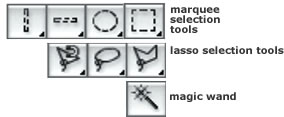
SELECTIONSMaking selections is the heart of Photoshop and using the various selection tools is your key to success, whether you're creating an image from scratch, or retouching/editing a digital photograph.
|
||
|
There are four ways to create selections:
|
|
|
|
You can use any of the Marquee, Lasso and magic Wand tools in conjunction with each other. Simply switch to another tool and hold the Shift key to add to the current selection, or the Option/Alt key to subtract areas. Since holding the Shift key and/or Option/Alt keys also control how a shape marquee is created, you might need to release and press these keys again to get your selection tool working the way you want it to. NOTE: Holding the Shift key as you create a shaped selection will constrain it to a perfect square or circle. Holding Shift also adds to a selection. Holding the Option/Alt key as you create a shaped selection will draw the marquee from the center of the shape. Holding Option/Alt will also delete portions of a selection. In addition, you can toggle between the Freeform Lasso and the Polygonal Lasso while you’re in the middle of making a selection by holding the Option/Alt key. If you want to make a selection using the Pen tool instead, be sure to add a new path in the Paths palette first. If you don’t, Photoshop will create a layer mask based on your path. This isn’t a huge problem, but it adds a couple of steps to the process, depending on your purpose. If you’ve spent some time with the Pen tool outlining a shape for a silhouette, for instance, before realizing Photoshop has created a layer mask for you, focus on the Paths palette and use the submenu to save it. Once that’s done, you can safely delete the layer mask without also deleting the path you drew. To make a path into a selection, simply click on the “make selection” icon at the bottom of the Paths palette.
|
||
|
|
||
|
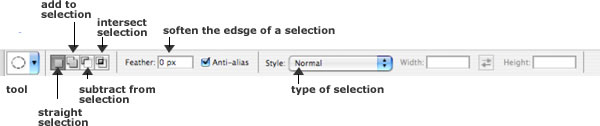
Pay attention to the Options palette along the top of your workspace; there are several different options you can choose from that influence the way you make selections available there. |
||